
In this section, you can find information about the different actions that users having required permissions to access the Project Managers Dashboard (PM Dashboard) can carry out.
Clicking on the corresponding EMS block, you can access the PM Dashboard. In the PM Dashboard you can do different actions regarding events registered users, for example: consulting participants’ and accepted participants’ lists, adding participants, consulting payments status, etc.
Profiles with access
- Administrator user
- Event user
- Event admin user
- Stats_user user
Initial screen and events list
Accessing the PM Dashboard, you can see a screen containing a summary of all the website events organized in six blocks.
- Draft events: In this block, events holding the ‘Draft’ status are included. These events are only visible for users with the required events creation permissions. This status is used for draft type events.
- Future events, announced: In this block, events holding the ‘Published’ status are included. They are visible in the public part and their start date is the same or later than the current date or their registration deadline is the same or later than the current date.
- On-going events: In this block, on-going events holding the ‘Published’ status are included. This means that their start date is the same or earlier than the current date and their end date is later than the current date.
- Past events: In this block events holding the ‘Published’ status and that have already took place are included. This means that their end date is earlier than the current date.
- Cancelled events: In this block all the events holding the ‘Cancelled’ status are included. They are ‘removed’ events, non-visible in the lists and which are not taken into account in the statistics. Normally, these events did not take place
- Archived events: In this block all the events holding the ‘Archived’ status are included. These events are not visible in the lists included in the public part, although you can access to its record.
NOTE: Events appear automatically with this status six months after the end date.
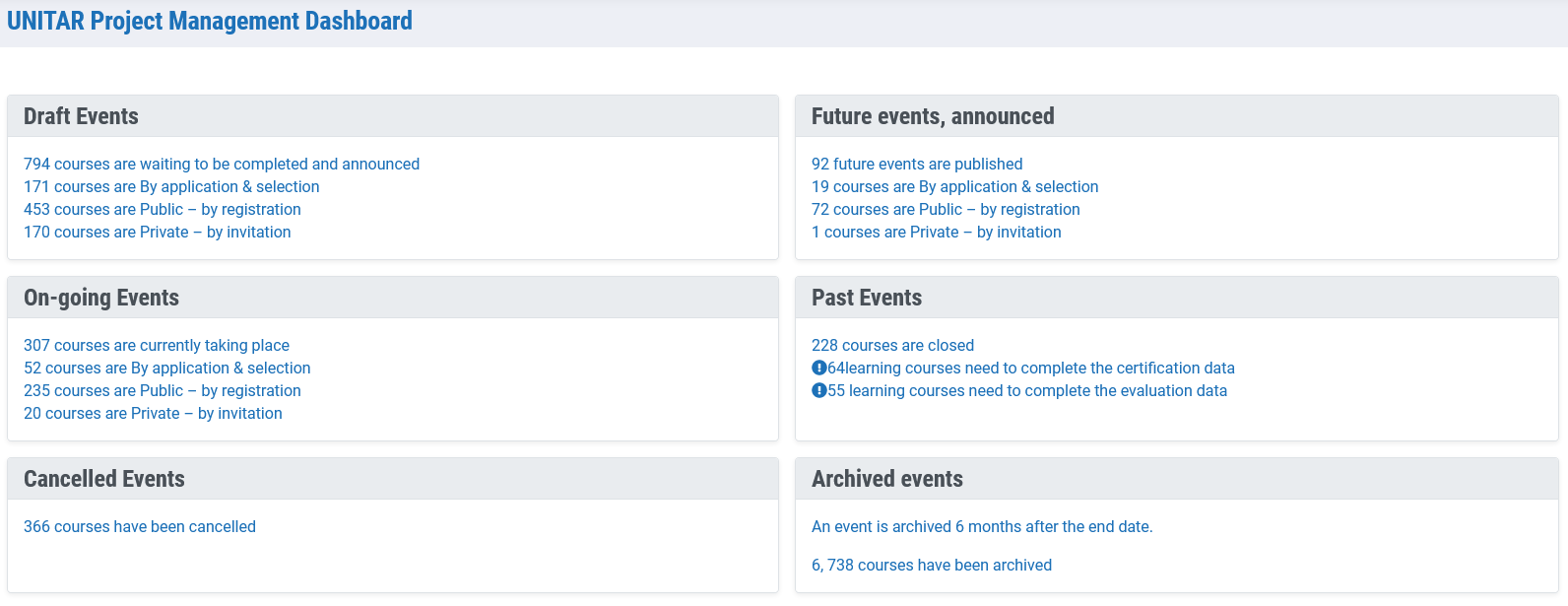
In each block, you can obtain the list of events clicking on the number referring to the total amount of events or to the total amount of each event registration type:
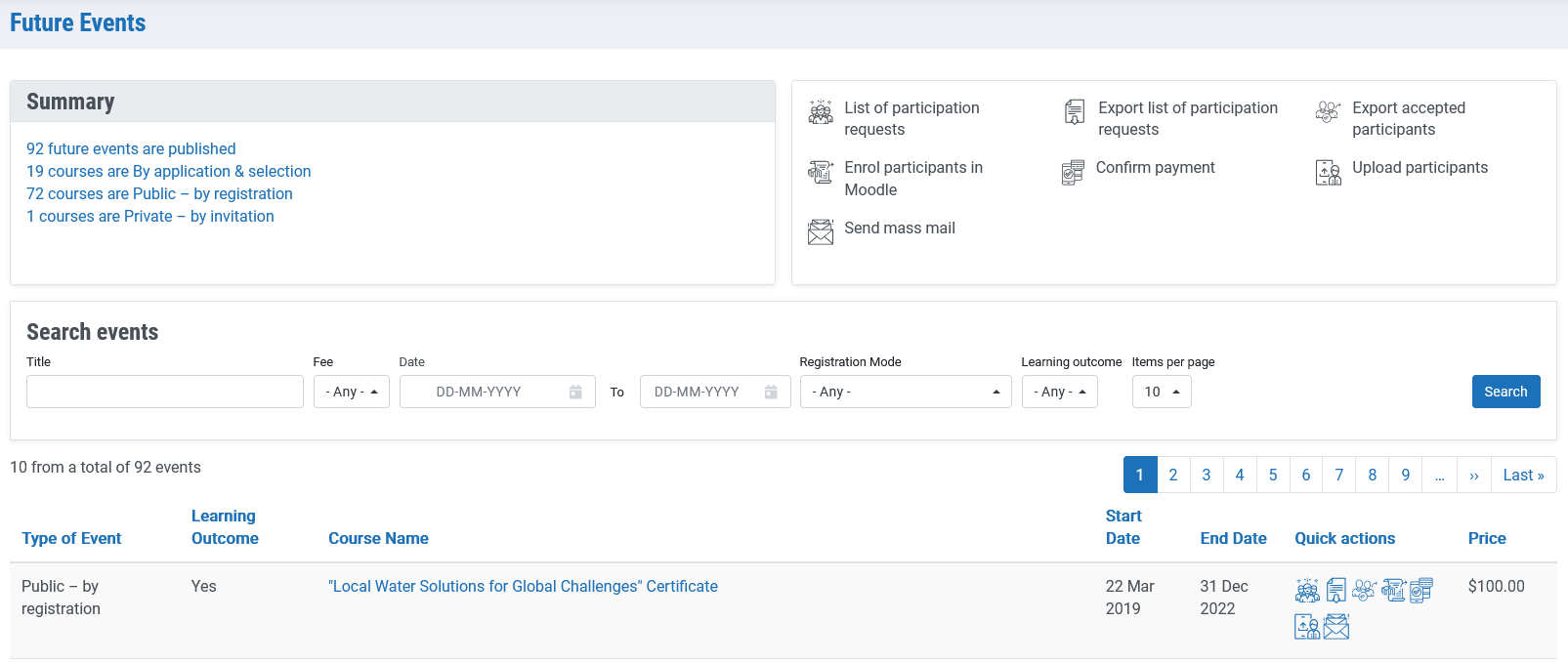
In the image above, one of the aforementioned lists can be seen: ‘Past events’ list. Every list follows the same structure. This one is going to be used as an example in order to explain how it works.
In the top left corner of the interface, you can see a summary including the total amount of events of the selected block. In most cases, a short classification based on the type of registration or evaluation /certification can also be found right under.
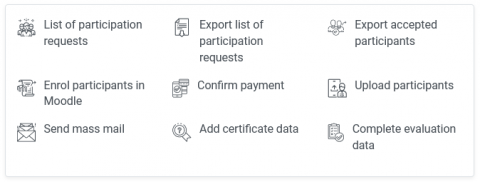
In the top right corner, there is a legend indicating the meaning of the possible available options for each event. Those are called ‘quick actions’:
- List of participation requests: Provides the list of the people registered in the event. It is possible to accept, reject or delete event users.
- Export list of participation requests: Downloads event registration applications in Excel format.
- Export accepted participants: Exports approved registration applications in Excel format.
- Enrol participants in Moodle: Allow the check the Moodle enrolments in two ways:
- Downloads the information of those accepted event participants in Moodle format in order to transfer that information to the Moodle platform.
- Allow to select users uploaded and perform the enrolment action directly without the need of access the Moodle platform.
NOTE: For this case you need to have both EMS and Moodle events connected.
- Confirm payment: Provides the payment list of accepted applications or provisionally accepted applications and pending to be paid. This list will help you in payment management.
- Upload participants: Uploads massively participants’ applications using an Excel template.
- Send mass mail: Delivers mass mailing to every event participant.
- Add certificate data: Provides a list containing information about event participation and issued completion and participation certificates.
- Add evaluation data: Provides and edits the information regarding the event evaluation done by the users.
- Add custom number of participants: Indicates the number of participants of an event, including the possibility of distinguishing between men and women. This option only appears in events without participation applications.
- Multiple purchases: Provides the multiple purchase list.
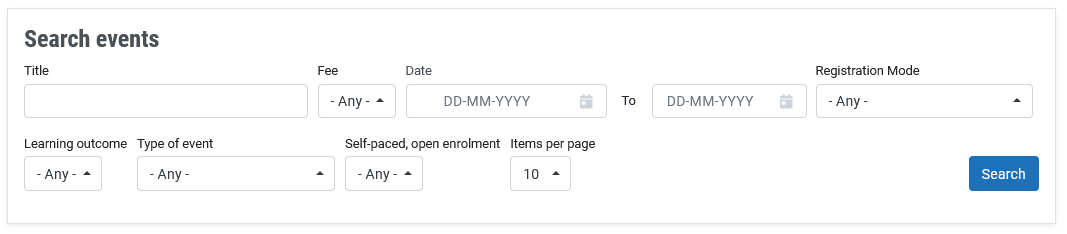
Next, you can see a search box with different fields. Using these fields you can filter the events shown on the list. The available filters are:
- Title: filters using one or more words which appear on the events title.
- Fee: indicates if the events has a cost or not.
- Date range: filters using a period of dates.
- Registration mode: filters using a type of event registration.
- Learning outcome: indicates if the event has or has not ‘Learning outcome’ associated.
- Type of event: filters using the type of event.
- Self-paced, open enrolment: It is used to select the events classified as this type or not.
Finally, you can see the corresponding list of events. In each list, you will find the following information: registration type, if ‘learning outcome’ is associated, name, start and end dates, price and quick actions.
In the ‘quick actions’ section, you will find out information about all the available options for each event. Please, find below an explanation in detail of each of them.
Quick Actions
The quick actions are icons with embedded links that allow the possibility of carrying out different functions in each event. Not every event has the same actions available. Each list type has associated some quick actions and it is possible that certain options are deactivated in each list type.
Please find below the complete list of quick actions:
List of request for participation
This function provides a list including the event registration applications.
In the Registration status box, a series of actions related to the listed registration applications is available. These actions are different depending on the event registration type.
‘Public – by registration’ events type
You can see a list containing all the users that have applied for an event registration. This list includes the following information: registration date and time, name, nationality, organizational affiliation, registration status and payment status.
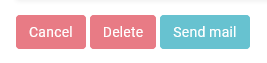
Selecting the required participants, the registration status can be modified using the two ‘Cancel’ and ‘Delete’ buttons shown on the list.
- Cancel: the registration application is cancelled then it appears as Cancelled.
- Delete: the registration application is deleted then it appears as Delete. The applications with this status are not visible in the lists and they are not taken into account for the statistics.
NOTE: Users with Cancelled or Deleted applications can apply for a new event registration. The rest of statuses do not allow the user to make a new application.

‘By application & selection’ events type:
In this case, the information provided is exactly the same as the information already provided for the previous case. However, here you will find more options to modify the registration status. Apart from the two aforementioned options, now the ‘Accept’ and ‘Reject’ options are also available since this type of events require the participation approval by a manager.
- Accept: the registration application is accepted.
- If the event has not a cost the status appears as Accepted
- If the event has a cost the status appears as Payment pending
- Reject: the registration application is rejected by a manager. The status will appear as Application rejected.
Next, the difference between the various registration statuses is explained:
- Selection pending: refers to registration applications pending to be approved by an event manager. This status is allocated automatically to every By application & selection event type after sending the survey provided when clicking on the button ‘Apply here’ from the record of this type of events.
- Accepted: refers to approved and paid registration applications. Applications with this type of status are considered participation applications.
- Application rejected: refers to registration applications rejected by an event manager. This status is only applicable to By application & selection events type, after selecting the Reject option from this registration form.
- Payment pending: refers to approved and pending to be paid registration applications. This status is allocated automatically to all the events with an associated cost and pending to be paid. In the case of By application & selection events type, they appear with this status once the registration is approved by the manager.
- Cancelled: refers to cancelled registration applications by an event manager. Normally, those cancellations are applied by the participant. In case of those events with an associated cost, the registrations appear with this status automatically once the associated registration order payment is rejected by a manager where applicable.
- Delete: refers to registration applications deleted by an event manager. These applications neither are observed in the registration or participation lists, nor taken into account in the statistics from the statsearch.
NOTE: Users with Cancelled or Delete status applications can make a new registration application of the event. The rest of statuses do not allow the user making a new application.
Download request of participation
Clicking on this icon, you can download an Excel file including the details of all the users who have made an event registration application and also the corresponding application status
Export accepted participants
Clicking on this icon, you can download an Excel file including a list of the event participants. This refers to all those users appearing with approved status on their registration application.

Enrol participants in Moodle
Clicking on this icon, you can access a page to download an CSV file in Moodle format including the event participants’ information referring to all those users appearing with approved status on their registration application. Or, if the event is connected to Moodle, directly enrol students in Moodle without the need of export / import a file.

Confirm payment
Using this function, it is possible to access to all the event registration applications appearing with the pending to be paid or approved status.
Besides, in the Payment status box a series of actions regarding the listed registration applications are available.
For each registration application, you can find the application associated details (date and registration time, full name, nationality) and the application order associated details (payment method, payment status and invoice number). Besides, you can also see an Offer Fee Reduction column. Here, you can see if a price discount is likely to be offered (button opening a popup where the discount can be added) or it has already been offered to the registration application.
Selecting the required participants, the payment status can be modified using the buttons located on the list: ‘Confirm’ and ‘Reject’.
- Confirm: the manager can confirm the associated order payment. In this case, the payment status appears as Completed and the registration status as Accepted.
- Reject: the manager can reject the associated order payment. In this case, the payment status appears as Canceled and the registration status as Canceled.
- It will only be possible to reject those payments appearing with the ‘Pending’ status. In case, they appear as ‘Completed’, the ‘Reject’ option is not available.
- Transfer user event: the manager can transfer one or more users from the current event to another event.There are two cases where the manager can do this action:
The transferred participants will be set as participated to the new event and will be removed from the old event. But the orders will not be modified, instead a comment will be added to the order with the change information.
- When the manager needs to transfer all participants from an event that cannot be celebrated on specific dates to a new event created on other dates.
- First, the manager selects all the participants.
- Then, the manager must select a new event in an autocomplete field.
- Finally, a confirm step is the last step.
- And once all the participants are transferred, the manager can cancel the old event.
- When the manager needs to transfer one or more participants to another event of the same type and price. For example, when a participant purchased an event by mistake and wants to switch to another event.
- First, the manager selects one or more participants.
- Then, the manager must select a new event. It has to be an event of the same type and price.
- And finally, a step where the manager must confirm the changes.
- Note that the two events have to be of the same type and price.
- When the manager needs to transfer all participants from an event that cannot be celebrated on specific dates to a new event created on other dates.
- Offer fee reduction: the manager can reduce the event cost in the registration application. Clicking on this button, a pop-up window opens:
- The programme manager has secured funds to off-set the reduction/waiver in fees and can provide justification id required: this field is selected for informational purposes for managers.
- 100% Fee Reduction: if this option is selected, a total reduction of the event cost is being offered. In this case, the event cost appears as 0$. Saving this reduction, the payment method appears as Free order and the registration status appears as Accepted.
- New Fee: it allows indicating a new price for the event. In this case, the event cost shall be lower than the original and it shall be the price that a participant would have to pay.
- Notify the participant: by selecting this option, an email will be sent automatically to the participant informing about this reduction.
Please note that discounts can only be offered to those participants whose payments appear with the status ‘Pending’.
Upload participants
Clicking on this icon, it appears a screen where a mass upload of event attending participants can be done using an Excel template. This Excel template can be downloaded from this screen.
Please see the corresponding screen in the following picture:
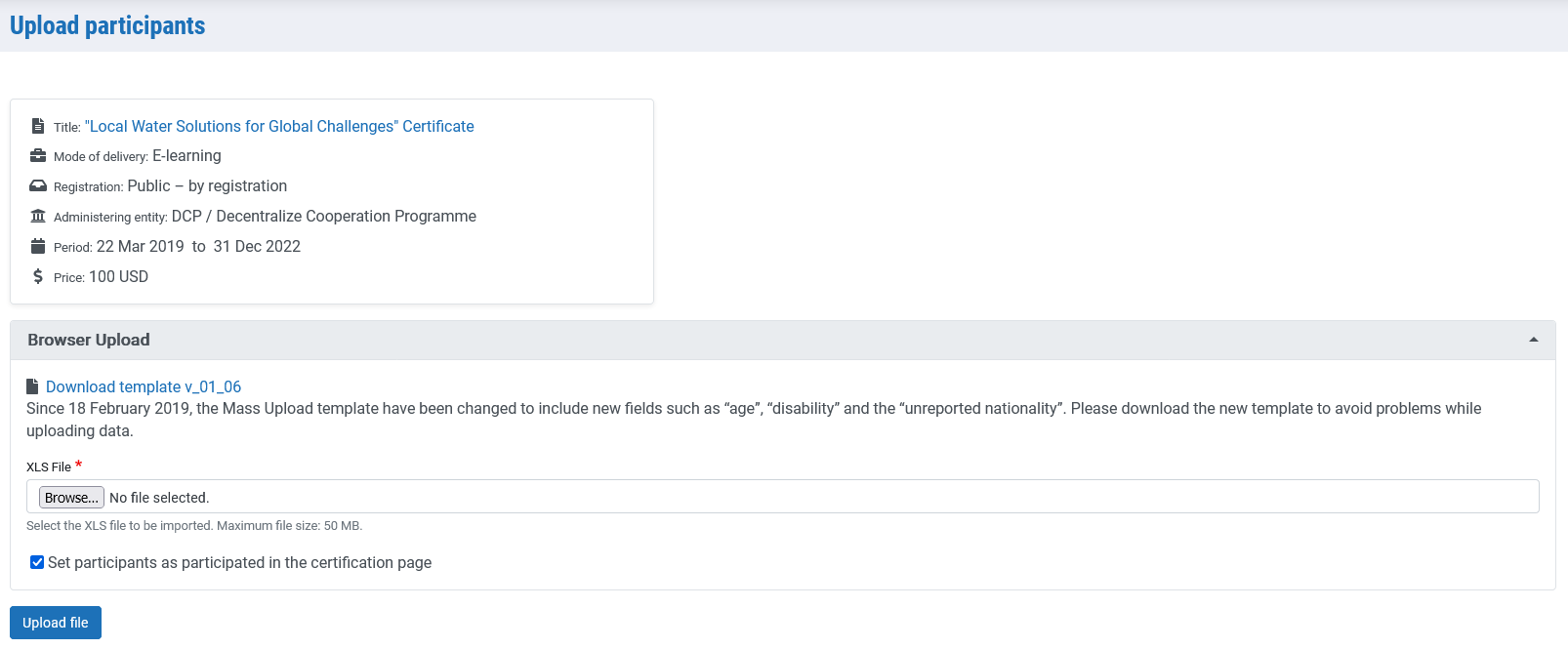
Please see in the previous picture the field to upload the Excel file including the participants and the ‘Download template’ link.
If the event has orders with multiple purchases, and some of them are pending to be associated to participants, there is a new step in the process. The manager can attach an order to a participant that were uploaded previously in the process.
Send Mass email
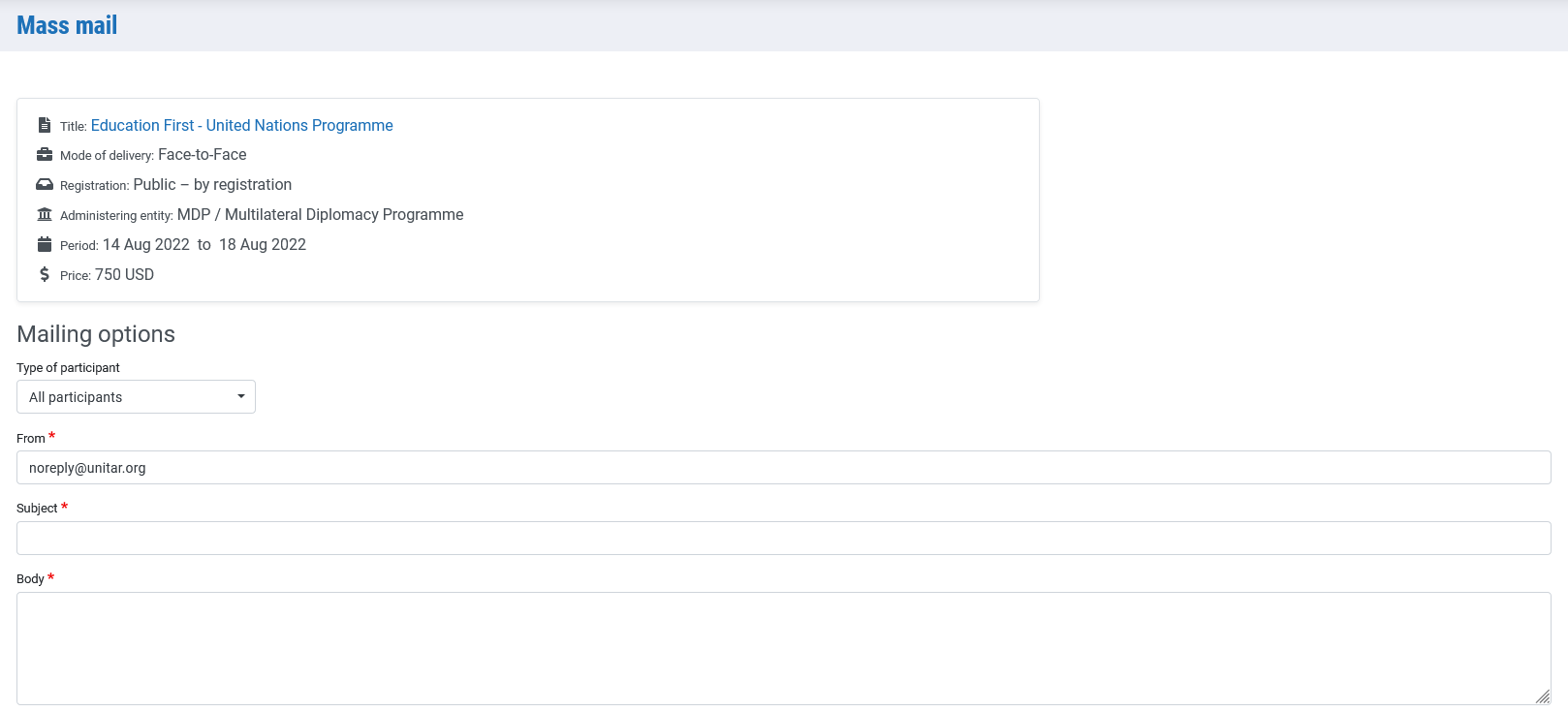
Clicking on this icon, you access to a screen offering the possibility of sending mass emails to event participants.
On that screen, there is a form consisting of the following fields:
- Format: field of simple selection type used to select the mail format. In case, there is not any mail template, this field will be hidden and the For Free Style Mailing use the Editor below option will be selected by default.
- Type of participant: Mandatory field of simple selection type used to select the group of participants the email will be sent to. The available options are:
- All participants: including the entire participants group that has applied to join the event. That is, those users that have made a registration application.
- Accepted participants: including the entire participants group that are pending on selection to be participant. Will only work for event that belongs to “by application and selection” registration.
- Selection pending participants: including the entire participants group that are payment pending. Will only work for By Application & Selection events.
- Payment pending participants: including the entire participants group that are accepted, therefore their registration status is accepted, but are payment pending.
- From email: Field of text type used to indicate the email sender. These emails are sent by the default address noreply [at] unitar.org (noreply[at]unitar[dot]org).
- Subject: Field of text type where the email subject will be introduced.
- Message: Field of textarea type where the email body will be introduced.
Completion data status
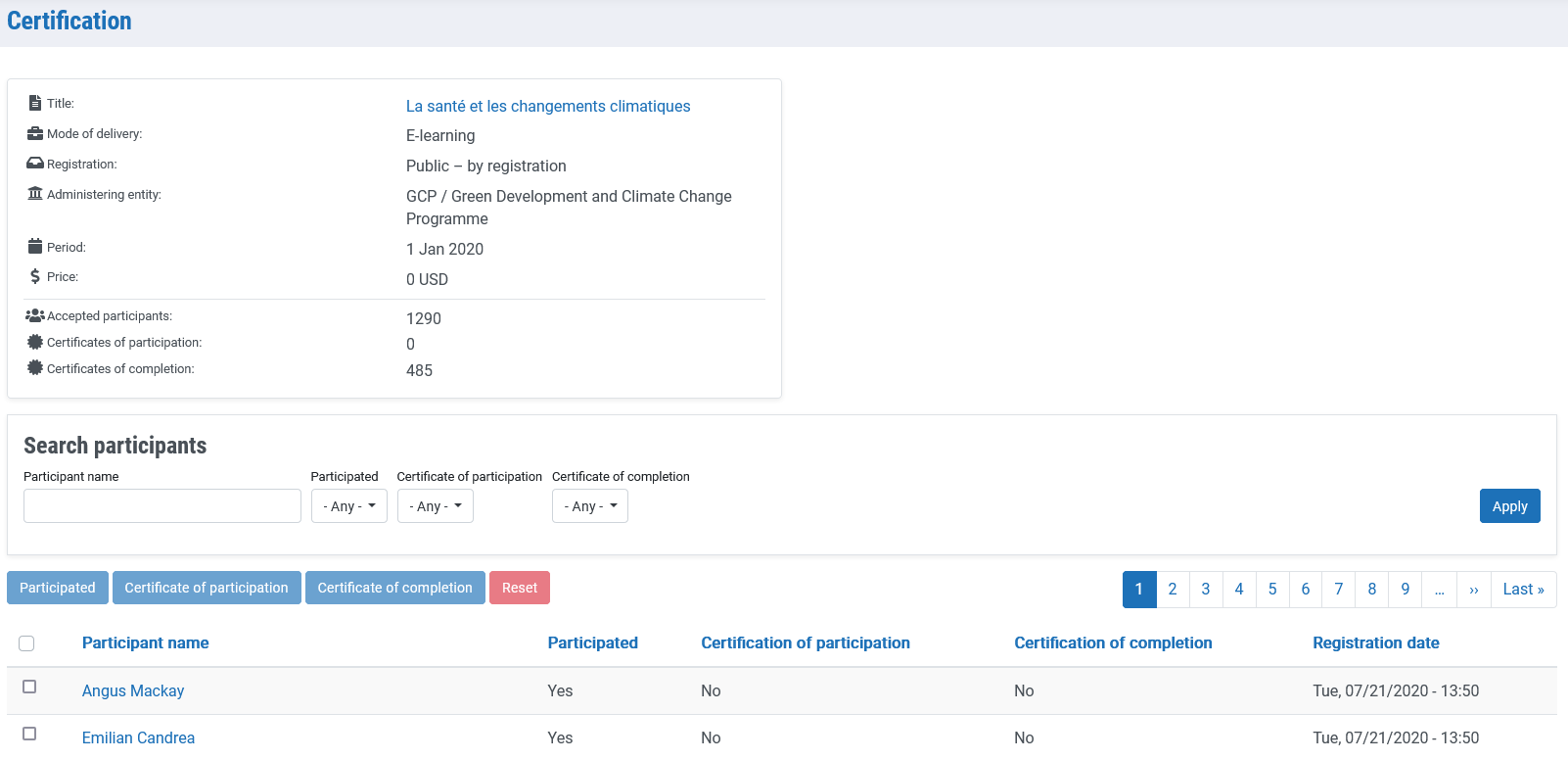
Clicking on this icon, you access to a screen where participant users as well as their certificates can be managed.
First of all, you can see a reporting table indicating the event period, price, total amount of participants and the number of those with a completion and participation certificate.
Next, you can see the participants list whose registration application is accepted. On these applications, you can also manage the participants’ attendance and the received certificates.
- Participated: the manager will indicate the users attending the event.
- Certificate of participation: the manager will indicate the users having received the participation certificate.
- Certificate of completion: the manager will indicate the users having received the completion certificate.
- Reset: it is used to reset the aforementioned three values.
NOTE: the user will receive only one of the two certificates. That is, if it is selected that the user has received the completion certificate, the participation value will be reset.
At the end of the list, you can see a button to mark the event details as completed.
Evaluation data status
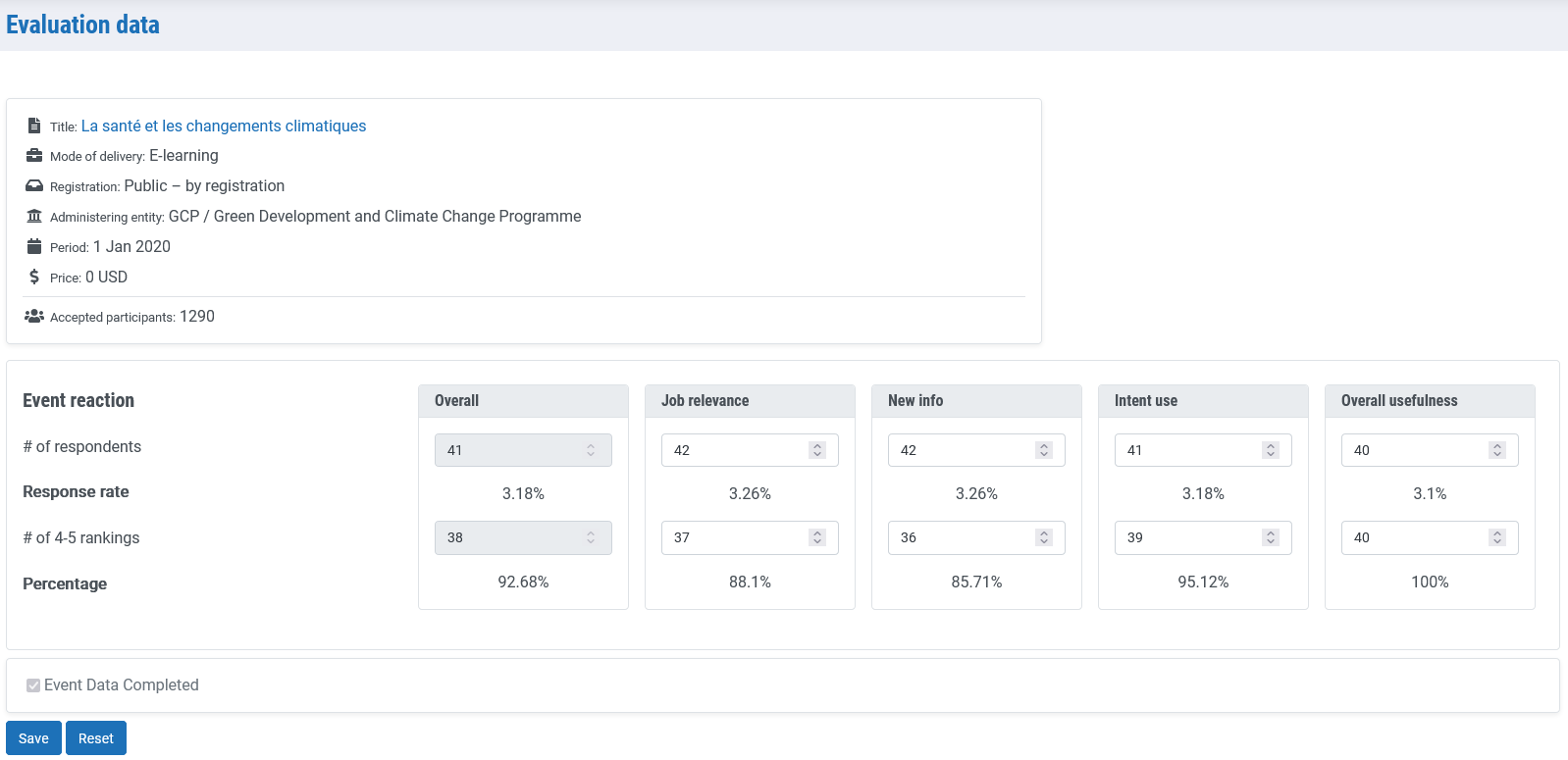
Clicking on this icon, you access to a screen that allows the view, edition or addition of an event evaluation data. Here, it is also possible to mark the evaluation as completed.
In the top of the interface, you can see a reporting table indicating the event period, price and number of users having participated.
Values can be modified writing directly on the field you want to change. Please note that:
- the number of respondents cannot be bigger than the number of participants.
- the number of rankings cannot be bigger than the number of respondents.
Clicking on the Update button the data is saved and automatically the event evaluation status appears as completed, ON is marked.
Clicking on the Reset button, all the values are reset with zero value and automatically the event evaluation status appears as not completed, OFF is marked.
Multiple purchases
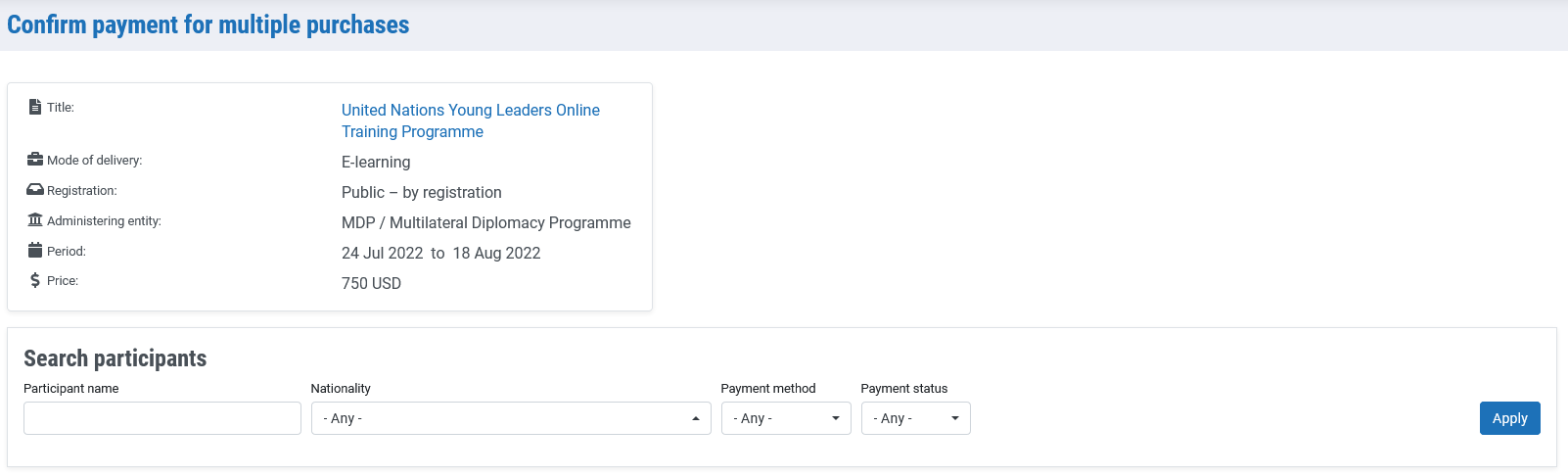
Clicking on this icon, you access to a screen where you can see the event multiple purchases. This refers to those orders including more than one unit of each event.
Please note that any user associated registration application is created when managing the purchase. Since this user is not always going to participate directly in the event, meaning that this user is just the purchaser.
Then, you can see a list including the multiple purchases of this event indicating for each one the following details: purchase date and time, user name, contact email, nationality, organizational affiliation and invoice number.
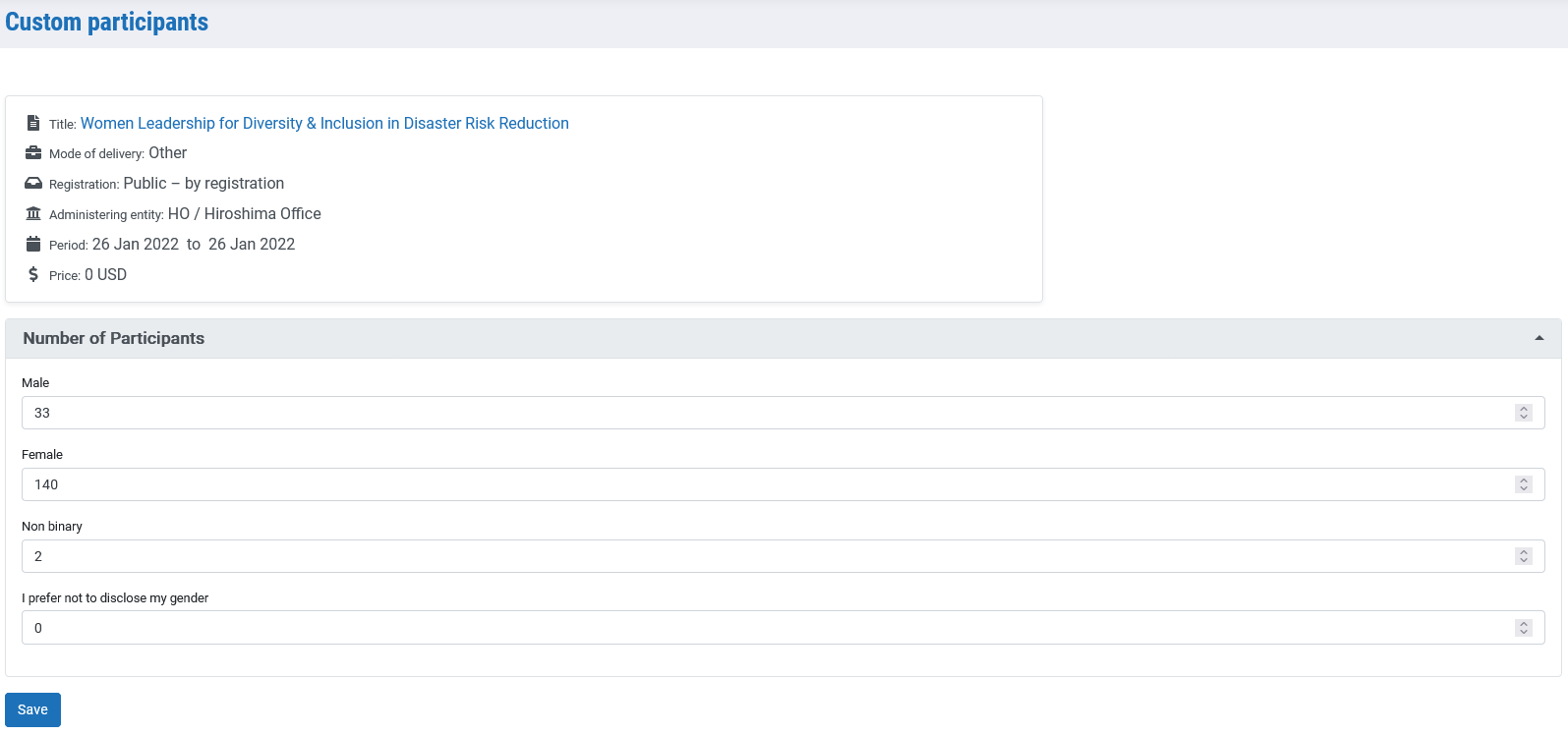
Custom number of participants
Clicking on this icon, you access to a screen providing the possibility of indicating the number of event attendees without being associated to registration applications.
For events qualifying for custom upload (i.e. conference, public lecture, side event, other) click on the custom upload facility in the project manager’s dashboard and indicate the number of male, female and other gender participants based on your records from the event. Click on save to complete.
Besides, for statistical data purposes, you can distinguish between the number of men, female and other gender attending.
The number of men, female and other gender can be indicated writing directly on the corresponding field of text or dragging the graphical component placed on the right.
The range of allowed values in the graphical component goes from zero to three hundred, but you can introduce directly a number bigger than 300 on the field.
This option will be only available for those events included in the following list:
- Conference
- Other
- Public lecture
- Side Event
This option will remain deactivated for those events with existing registration applications associated to the event.